
This article provides information on how to perform battery reset under Energy Management. The screenshots may differ between various software versions.
If the system is installed with OneKey Optimizer, the steps are different.
The system is configured with Lenovo Energy Management (5.0, 6.0, 7.0, 8.0), calibration solution as below show:

Universal Laptop Charger for Lenovo ThinkPad 65 Watt 20V 3.25A Type-C USB AC Adapter ADLX65YDC2A ADLX65YLC3D
1. Run Energy Management, then click the icon as shown below.

2. Click Start.
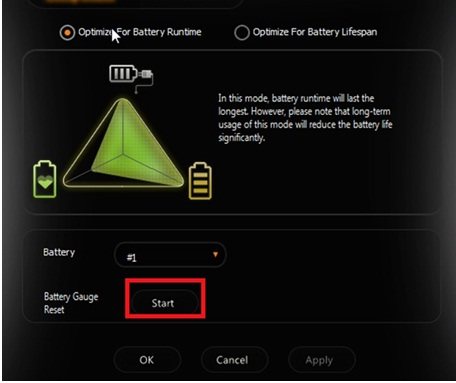
3. Close all running programs and connect the AC adapter, then click Continue.

4. The whole process may take several hours. Do not use the computer during this period. Do not cancel while the process is running. Wait until the process is completed.

Note: To manually calibrate the battery, charge the battery to 100%. Allow the battery to drain down to 5% before charging again.
If you want to learn more about batteries, please visit:BatteryMall.com/support.

0 comments